
How to
Dashboard: the walk-in queue and the waitlist
Mosey · 23 October 2026 · 3 min read

The walk-in queue lets guests join a line from their phone instead of standing at the door. In the dashboard, Mosey Queue has two pages: Live queue, where you see who is waiting and call the next party, and Settings, where you turn the queue on and set the typical wait, a cap and pauses. It is free on every plan and works with or without reservations. The Waitlist, under Reservations, is for dates that are already full.
How do you switch it on?
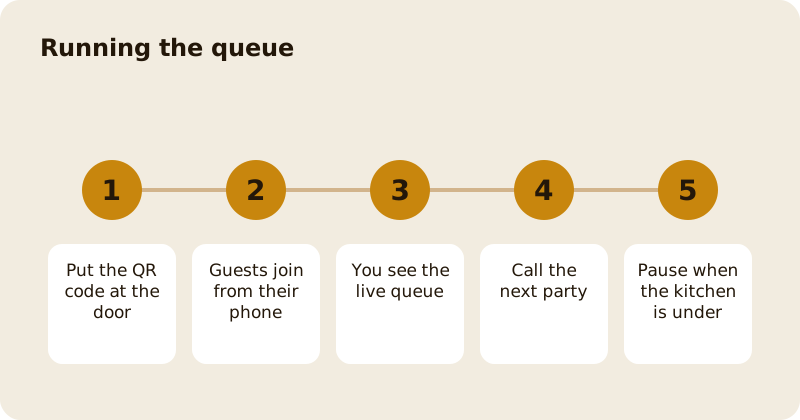
Open Mosey Queue and go to Settings. Turn the queue on. A cafe can run the queue without taking bookings at all. Set the typical wait per party size, a cap on how many parties can queue, and the hours it runs. You can pause it when the kitchen is under, and guests see that the queue is not taking joins.
Put the QR code at the door, on the window and on the counter. The guest scans it, with no app and no account needed, and joins from their phone. In the Mosey app, they can also join from your page.
What does the guest see?
The standard option adds them to the queue for free and tells them when their table is close. Some places add paid options that move a guest to the front for an hour or keep a table for them; if you offer these, the guest sees the amount and what is refunded if you cannot seat them. A guest can say they are here now, on the way or arriving in a number of minutes. The diner guide shows it.
How do you run the Live queue?
The page lists parties in order with their size, how long they have waited and whether they are here. When a table is ready, call the next party; the guest is notified. If a party does not turn up, mark them and move on. If you cannot take a paid-hold guest, the fee is refunded. The wait estimate updates as you work.
Browser alerts can tell the host when someone joins, so the screen need not be watched.
What is the waitlist?
Under Reservations, the waitlist takes names for a date that is already booked up. Starter includes the waitlist, and Host adds cross-date matching, so a party that wanted Friday can be offered Saturday when a table opens. The guest gets a 24-hour window to claim it before it moves on.
Does the queue connect to bookings?
Yes, beside reservations: bookings fill the room in advance and the queue handles walk-ins on the night. The walk-in reserve you set in Reservations holds covers back for this. At the counter, Mosey Tap shows queue positions for guests who tap in; see the counter and Mosey Tap.
What are the common mistakes?
Setting the wait too short, which makes guests angry; leaving the queue on when the kitchen is slammed; forgetting to tell the door staff the QR exists; and not calling parties in order. Be honest about the wait and people will wait.
The product guide is the walk-in queue, and the reservations pages cover bookings.
Questions
Common questions
Is the walk-in queue free?
Yes. The queue is free on every plan and does not require reservations. It works on its own for a place that does not take bookings.
Do guests need an account to join the queue?
No. A guest scans the QR code at the door and joins from their phone without an app or an account.
Can I pause the queue?
Yes. Pause it when the kitchen is under, and guests see that the queue is not taking joins. You can also cap how many parties can queue.
What is the difference between the queue and the waitlist?
The queue is for walk-ins on the day. The waitlist takes names for a date that is already fully booked. The waitlist starts on the Starter plan.
What if I cannot seat a guest who paid a hold fee?
The fee is refunded if you cannot take them. The guest sees this rule before they pay, so nobody is surprised if their table is not ready in time.
More like this
Read next
Dashboard: Account and billing, Stripe payouts and your invoices
Account and billing is where you connect Stripe, see what Mosey has charged and why, and download invoices. Your takings go to your own Stripe account, not through Mosey.
Dashboard: Analytics and Mosey picks, what the numbers mean
Analytics shows how people find your business and what they do next. Mosey picks shows where you stand on ratings. Gold is earned from ratings alone and nobody can pay for it.
Dashboard: build your menu, scan it in and declare allergens
Menu Builder is the base for everything you sell. Scan your paper menu, tidy the dishes, choose where each is sold and declare allergens once so every ticket and label carries them.
Dashboard: Catering, requests, quotes, deposits and the calendar
Catering has its own group in the sidebar. A request arrives, you build a quote, the customer accepts, and a deposit holds the date. Here is each screen in order.
Get started
Claim your business free
Free to list, no set-up fee, and Order Ahead is 1.5% commission when you start taking orders.