
How to
Dashboard: the Till, taking an order and taking payment
Mosey · 23 October 2026 · 3 min read

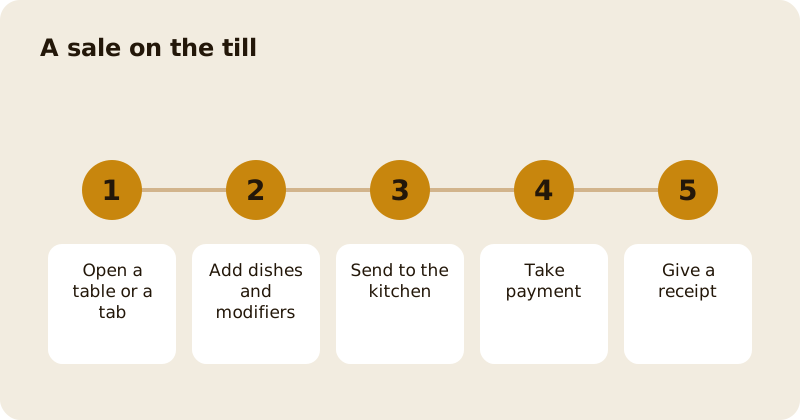
The Till group in the dashboard sidebar has four pages: Till, Orders, Reports and Settings. The Till runs in a browser on a tablet or laptop. Open a table or a tab, add dishes with sizes, extras and notes, send them to the kitchen, split the bill if you need to, and take payment in cash, on your own card reader or through Mosey Pay. Print, email or skip the receipt. You need the take payments permission, which staff have by default.
How do you start a sale?
On the Till page, open a table or a tab, or start a takeaway. The menu comes from Menu Builder, with sections, popular items and quick modifiers. Tap a dish to add it. Open a line to change its size, add extras, remove ingredients or add a note. Identical pending lines merge. You can add a custom amount for something that is not on the menu, and a promotion for a customer who has one. Voiding a line after it has been sent needs a reason.
What happens when you send to the kitchen?
If you use a kitchen screen or a printer, Send sends the pending lines. With the kitchen display, you can give lines a course from 1 to 4, so that a main is held until the starters are cleared. The bill shows held courses, and a second send or the pass fires the next one. Allergens declared on each dish are printed on the ticket as they stood when the line was rung. See stations, courses and the pass.
How do you take payment?
Choose how the guest pays. Cash is recorded with the amount given and the change due. A card payment on your own reader is recorded as external. A customer with Mosey Pay can pay from their phone; see Mosey Pay. You can split by item, by an equal share or by amount, taking several payments on one bill. Tips are recorded separately from the bill. The till refuses to take more than the balance owed.
What about receipts and the drawer?
The sale-complete panel shows the change in large type and offers print, email or no receipt. A receipt can be emailed to an attached customer or to an address typed at the counter. A cash drawer connected through a supported printer opens on cash payments, and you can open it for no-sale or float reasons, each recorded.
How do you keep control?
Comps, voids after sending and refunds raise an alert to the owner. A staff PIN identifies who rang each sale, and the till can go full screen and ask for a PIN to leave it. A shift bar tracks the cash count; see shifts, reports and refunds.
What about VAT?
Each dish has a VAT rate and takeaway can have its own. The receipt shows the VAT. The till is online-only by default, so a banner appears when the connection fails and the saving controls turn off; offline selling is an option an owner can switch on in Settings, with limits on what can be taken offline.
How is the till set up?
In Settings you choose how the kitchen is reached (screen, printer or none), whether to use staff PINs, receipt options and the drawer, and whether offline mode is on. Test with a few sales before service. The product guide is the Mosey till, the card side is taking card payments without a terminal, and pricing lists the fees.
Questions
Common questions
What devices does the till run on?
Any modern browser on a tablet or laptop. It is online by default, with a banner if the connection fails. Offline selling is optional and must be switched on by an owner.
Can I split a bill?
Yes. Split by item, by an equal share or by amount, taking several payments on one bill. The till will not take more than the balance owed.
How do I take cash?
Choose cash, enter the amount given, and the till shows the change due. Cash payments can open a connected drawer, and every drawer opening is recorded.
Who can use the till?
People with the take payments permission, which owners, managers and staff have by default. A staff PIN identifies who rang each sale.
What happens when I comp or void an item?
A void after the item was sent needs a reason, and comps, voids and refunds send an alert to the owner so adjustments are visible.
More like this
Read next
Dashboard: Account and billing, Stripe payouts and your invoices
Account and billing is where you connect Stripe, see what Mosey has charged and why, and download invoices. Your takings go to your own Stripe account, not through Mosey.
Dashboard: Analytics and Mosey picks, what the numbers mean
Analytics shows how people find your business and what they do next. Mosey picks shows where you stand on ratings. Gold is earned from ratings alone and nobody can pay for it.
Dashboard: build your menu, scan it in and declare allergens
Menu Builder is the base for everything you sell. Scan your paper menu, tidy the dishes, choose where each is sold and declare allergens once so every ticket and label carries them.
Dashboard: Catering, requests, quotes, deposits and the calendar
Catering has its own group in the sidebar. A request arrives, you build a quote, the customer accepts, and a deposit holds the date. Here is each screen in order.
Get started
Claim your business free
Free to list, no set-up fee, and Order Ahead is 1.5% commission when you start taking orders.