
How to
Dashboard: Jobs, post a vacancy and review applicants
Mosey · 23 October 2026 · 3 min read

Jobs, in the sidebar, is where you hire. Active holds the vacancies that are live, Drafts the ones you are writing, Applicants everyone who has applied, Outreach the workers you contact, Hiring set-up your defaults, and History the ones that are closed. Workers see your vacancy on the Mosey Jobs site. You need the manage jobs permission, which owners and managers have by default. It is separate from the Staff group, which holds the people you already employ.
How do you write a good vacancy?
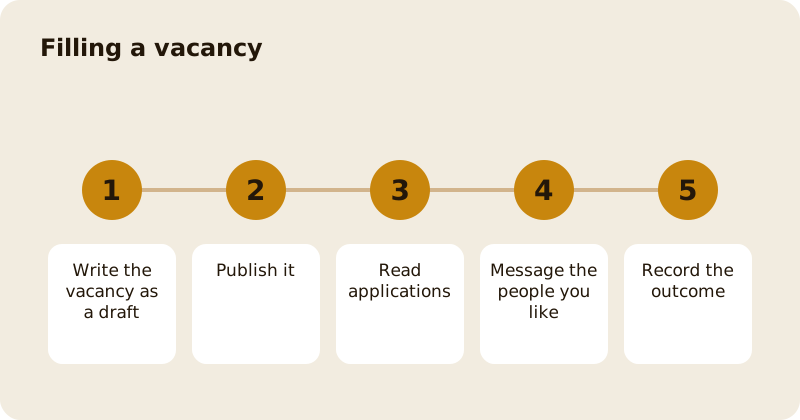
Say the role, the hours, the pay and the place in the first few lines. Name what the day looks like and what you will teach. Workers pass over a vacancy that hides the pay or the hours. Write it as a draft first and read it aloud. Use plain words, because a worker is deciding in under a minute.
How do you handle applications?
Open Applicants. Read the CV and any message, and reply to everyone, even with a no. A reply within two days keeps good people from taking another offer. Message the ones you like to arrange a trial shift. Keep your questions to what the job needs. Never ask about age, family plans, health or anything else that is not about the work.
What is Outreach?
Outreach lets you contact workers directly instead of waiting for applications. Write to people whose experience fits, and be specific about why you chose them. A short, honest message beats a template, because workers can tell one from the other.
What does Hiring set-up do?
It holds your defaults, such as the details that repeat on every vacancy, so you do not retype them. Fill it in once and every draft starts from it. Review it when your pay or hours change.
How do you run a trial shift well?
Tell them where to be, what to wear and who to ask for, and pay them for their time. Give them a real task and a colleague to learn from, and ask the team what they thought. A trial that is only watching tells you little, and a trial that is unpaid causes trouble. Agree the outcome at the end of the shift, not a week later.
What do you do once someone says yes?
Add them in the Staff group under People and give them the right role in Team & access if they need the dashboard; see team and access roles. Close the vacancy so it moves to History, and tell the others they were not chosen. Run the first month with the plan in staff hiring and training.
What should you not forget?
Contracts, right to work checks and pay rules apply to you, and Mosey does not do them for you. See rotas and working time rules and onboard and train new staff. Keep your own record of who you hired and when.
Questions
Common questions
Who can post a vacancy?
People with the manage jobs permission, which owners and managers have by default. Staff cannot post or read applications unless an owner grants it.
Where do workers see my vacancy?
On the Mosey Jobs site for workers, where they can search, save a vacancy and apply. Your vacancy shows your business, the pay and the hours you write.
Does Mosey check right to work?
No. Contracts, right to work checks and pay rules are your responsibility. Keep your own records of who you hired and when.
Should I reply to every applicant?
Yes. A reply within two days keeps good people with you and treats the rest fairly. Even a short no is better than silence.
Is Jobs the same as the Staff group?
No. Jobs is for hiring people you do not yet employ. The Staff group holds the rota, hours, leave and records for people who already work for you.
More like this
Read next
Dashboard: Account and billing, Stripe payouts and your invoices
Account and billing is where you connect Stripe, see what Mosey has charged and why, and download invoices. Your takings go to your own Stripe account, not through Mosey.
Dashboard: Analytics and Mosey picks, what the numbers mean
Analytics shows how people find your business and what they do next. Mosey picks shows where you stand on ratings. Gold is earned from ratings alone and nobody can pay for it.
Dashboard: build your menu, scan it in and declare allergens
Menu Builder is the base for everything you sell. Scan your paper menu, tidy the dishes, choose where each is sold and declare allergens once so every ticket and label carries them.
Dashboard: Catering, requests, quotes, deposits and the calendar
Catering has its own group in the sidebar. A request arrives, you build a quote, the customer accepts, and a deposit holds the date. Here is each screen in order.
Get started
Claim your business free
Free to list, no set-up fee, and Order Ahead is 1.5% commission when you start taking orders.