How to
Dashboard: Team & access, roles and what each one can do
Mosey · 23 October 2026 · 3 min read

Team & access, under Account in the sidebar, controls who can use your Mosey dashboard and what they can do. Every person has one of three roles: owner, manager or staff. A role sets a default list of permissions, and you can switch single permissions on or off for one person. Only an owner can grant control of billing, the team or a chain. You need the manage team permission to invite, change or remove anyone, and that is owner only by default.
What can each role do by default?
Owners can do everything. Managers can do everything operational, but not billing, the team or chain management. Staff are front of house: they see the dashboard, take and update orders, take payments, serve the Counter, handle reservations and answer the inbox. Staff cannot edit the menu, issue refunds, open or close a till shift, reply to reviews under your name, see analytics or change settings unless you grant it.
That list is deliberately short. Staff changing a price, replying to a review in your name or refunding a payment each need their own switch.
How do you invite someone?
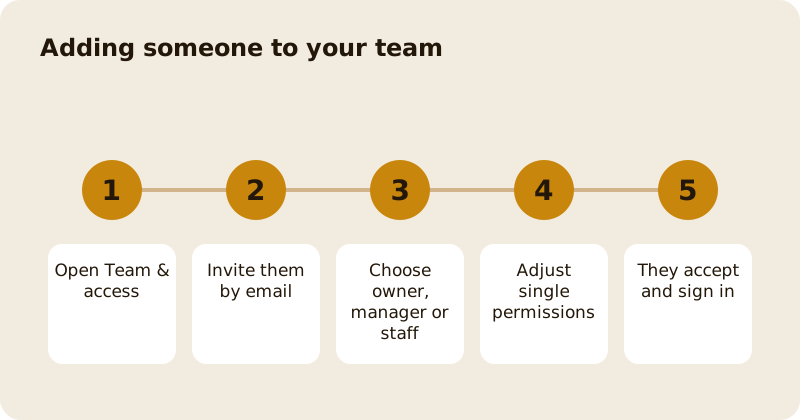
Open Team & access, enter their email and pick the role. If they already have a Mosey Business account, they are added to your business straight away and told by a notification and an email. If they do not, they get an email with a link. The link works once, lasts seven days and can be sent again, which replaces the old link. The person must sign in with the same verified email address that you invited, and you are told when they join. The system re-checks that you still have permission to invite at the moment they accept.
The Team & access page shows who you have invited and lets you resend or cancel an invite that has not been used.
How do you give one person one extra job?
Open the person and switch on the permission, for example manage reviews for the person who answers your ratings, or manage till for the shift lead who closes up. The page shows the plain English line for each role and for each switch. Nobody can change their own role, and the last owner cannot be removed, so you cannot lock yourself out.
What are staff PINs for?
A PIN identifies which person rang a sale on a shared tablet and which member of staff took a payment. It is a convenience lock and a record, not the thing that decides access. Permissions are the boundary. You can ask for a PIN at the point of payment in Till settings.
Where do you see who changed what?
Team changes are written to an append-only audit trail with who, what and when. Keep it in mind when someone leaves: remove them the same day, and their access ends at once.
What about several places?
Each person's role is per place, so one person can be a manager at one site and staff at another. See running several places as a chain. For the hiring side read staff hiring and training. Refund and till permissions are explained in till shifts, reports and refunds, and billing control in account, billing and payouts.
Questions
Common questions
Who can invite people to my dashboard?
People with the manage team permission, which only owners have by default. Managers cannot invite anyone unless an owner grants it, and they can never grant billing or team control.
Can a staff member see my sales figures?
Not by default. Staff do not have the view analytics permission. You can switch it on for one person without changing their role or their other permissions.
What happens if I remove someone?
Their access to your business ends straight away, and the removal is written to the audit trail. Their own Mosey account stays, and so do any other places they work at.
Can I invite someone who has no Mosey account yet?
Yes, by link. They create or sign in to a Mosey Business account with the same verified email address you invited, and the invite is single use.
How long does an invite link last?
Seven days. If it runs out, or the email went missing, resend it from Team & access. A new link replaces the old one, and you can cancel an invite that has not been used.
Can I stop myself being locked out?
Yes. Nobody can change their own role and the last owner cannot be removed, so there is always someone who can fix access.
More like this
Read next
Dashboard: Account and billing, Stripe payouts and your invoices
Account and billing is where you connect Stripe, see what Mosey has charged and why, and download invoices. Your takings go to your own Stripe account, not through Mosey.
Dashboard: Analytics and Mosey picks, what the numbers mean
Analytics shows how people find your business and what they do next. Mosey picks shows where you stand on ratings. Gold is earned from ratings alone and nobody can pay for it.
Dashboard: build your menu, scan it in and declare allergens
Menu Builder is the base for everything you sell. Scan your paper menu, tidy the dishes, choose where each is sold and declare allergens once so every ticket and label carries them.
Dashboard: Catering, requests, quotes, deposits and the calendar
Catering has its own group in the sidebar. A request arrives, you build a quote, the customer accepts, and a deposit holds the date. Here is each screen in order.
Get started
Claim your business free
Free to list, no set-up fee, and Order Ahead is 1.5% commission when you start taking orders.