How to
Dashboard: promotions, Deal Hours and ticketed events
Mosey · 23 October 2026 · 3 min read
Under Outreach in the sidebar, Promotions, Off-peak deals and Events each fill a quiet stretch in a different way. A promotion is a deal a guest buys and redeems. Off-peak deals, called Deal Hours, is a price rule that only exists inside a window. An event is a night with a ticket. Mosey takes 4.5% on promotions and 4% on events, and Deal Hours has no charge of its own. You need the manage marketing permission, which owners and managers have by default.
How do you build a promotion?
Open Promotions and choose the deal: for example a bundle of a main and a drink at a fixed price. Set the price, the quantity and the dates. Guests buy it in the app and get a ticket with a four digit code, and you redeem it at the till or the Counter. A promotion bought through the till is attached to a customer and priced after any membership discount. Keep deals specific, so staff and guests both understand them in a sentence.
What are Deal Hours?
Deal Hours are automatic off-peak price drops. You set the discount, the dishes and the days and times once, and prices drop inside the window and return afterwards. There is no code to give out. Pick the window from your own data, such as 3pm to 5pm on weekdays, and limit it to dishes with a healthy margin. See Deal Hours: put a price on your quiet period.
How do you sell tickets to an event?
Open Events, name the night, set a date, a capacity and ticket types, and publish. Guests buy tickets in the app, and if the event sells out they can join a waitlist. Check people in at the door by scanning a ticket, from the Events page or at the Counter, and a ticket can have a door tag for self check-in if you switch it on. Add a comp or a door sale as a named ticket rather than a payment. The sums are in work out if a ticketed food event pays.
What if you cancel an event?
Cancel it through the Cancel event action, not by deleting it. Every confirmed ticket is refunded, and holders are notified. An event that has sold a ticket is never deleted, only cancelled or hidden. If you change the date or place, the form asks whether to tell ticket holders, and you decide.
Which tool should you start with?
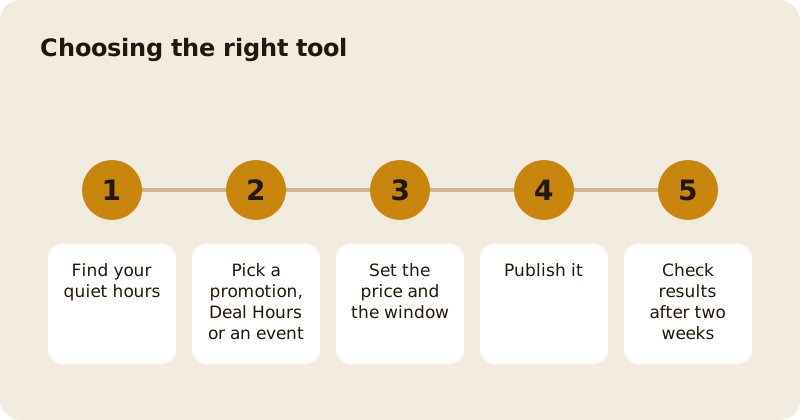
Start with Deal Hours if the problem is a quiet window, because it needs no code and no explaining. Use a promotion when you want a named deal that guests choose and share. Use an event when you have something special to offer, such as a tasting night, and enough notice to fill it. Run one at a time for the first month, so you can tell which worked. Then add a second. If you want help with the sums, vouchers in the dashboard cover bringing money in early.
How do you see whether it worked?
Give each tool two weeks. Compare covers and takings in the quiet window with the same window before. If a promotion filled the room but cost more than it brought in, change the price, not the idea. The wider plan is in grow revenue with vouchers, promotions, events and memberships.
Questions
Common questions
What is the difference between a promotion and Deal Hours?
A promotion is a deal a guest buys and redeems with a code. Deal Hours is a price rule that applies automatically inside a time window, with nothing to buy or redeem.
Who can create promotions and events?
People with the manage marketing permission, which owners and managers have by default. Giving away a comp ticket also needs manage marketing, because it gives a seat away.
How do I check people in at an event?
Scan the ticket on the Events page or at the Counter. A ticket scan is checked against its signature, and a party is marked in by the same rule everywhere.
What happens if I cancel an event?
Every confirmed ticket is refunded and holders are notified. An event that has sold tickets cannot be deleted, so you cancel or hide it instead.
Does Deal Hours cost extra?
No. Deal Hours has no charge of its own. The usual fee on an order applies as normal, as it does for any other order.
More like this
Read next
Dashboard: Account and billing, Stripe payouts and your invoices
Account and billing is where you connect Stripe, see what Mosey has charged and why, and download invoices. Your takings go to your own Stripe account, not through Mosey.
Dashboard: Analytics and Mosey picks, what the numbers mean
Analytics shows how people find your business and what they do next. Mosey picks shows where you stand on ratings. Gold is earned from ratings alone and nobody can pay for it.
Dashboard: build your menu, scan it in and declare allergens
Menu Builder is the base for everything you sell. Scan your paper menu, tidy the dishes, choose where each is sold and declare allergens once so every ticket and label carries them.
Dashboard: Catering, requests, quotes, deposits and the calendar
Catering has its own group in the sidebar. A request arrives, you build a quote, the customer accepts, and a deposit holds the date. Here is each screen in order.
Get started
Claim your business free
Free to list, no set-up fee, and Order Ahead is 1.5% commission when you start taking orders.