
How to
Dashboard: the Inbox, threads and saved responses
Mosey · 23 October 2026 · 3 min read

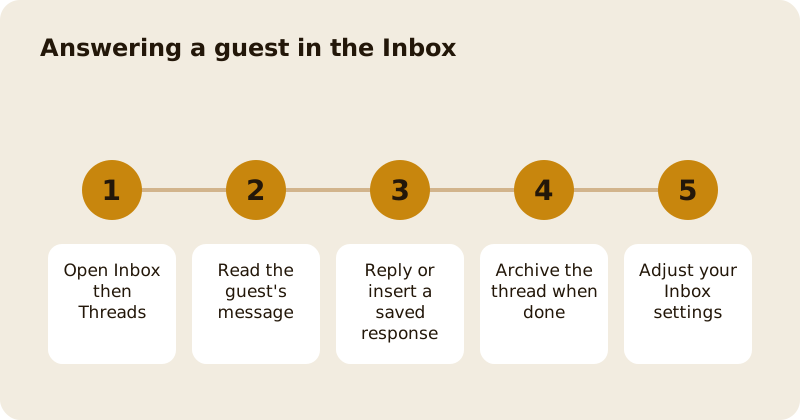
The Inbox, in the sidebar, collects the messages guests send your business from the Mosey app. Threads holds the live conversations, Archived keeps the finished ones, Saved responses holds the replies you reuse, and Settings controls how the Inbox behaves. You need the manage inbox permission, which owners, managers and staff have by default, so whoever is on shift can answer.
What goes in Threads?
One thread per guest. Open it to see the whole conversation, reply, and keep going. A reply reaches the guest as a notification in the app. Messages about a booking or an order stay with that guest, so you never have to ask who they are. Keep replies short and specific: a guest who asks whether you have a high chair wants yes or no and a time, not a paragraph.
What are saved responses?
A saved response is a label and a message you write once and insert in one press. Write them for the things you are asked every day: opening hours on a bank holiday, whether you take dogs, how to book for ten or more, where to park. Give each a plain label such as Dogs or Parking so staff find it quickly. Saved responses are shared across your team, so a new starter answers in your voice from day one.
How do you archive a thread?
Archive it when the question is answered. It leaves your active list but stays in Archived, and a new message from the guest brings the conversation back. An empty Threads list is a good sign, so archive often.
What can you set in Inbox settings?
Settings is where you decide how the Inbox handles messages when you are closed or busy. Turn on an automatic reply that tells guests when you will be back, so nobody waits in silence. Keep it truthful: say when you will reply, then do. For automatic messages about bookings and orders see automatic customer messages.
What should you not do in the Inbox?
Do not move a complaint about food safety or an allergic reaction into a chat and leave it. Reply at once, take it to a call if you can, and keep a note. Do not share another guest's details. Public reviews have their own page; see reviews, posts and photos.
How fast should you reply?
Aim to answer within the same service for anything about today, and within a day for everything else. A short honest reply beats a long late one. If you cannot answer yet, say so and say when you will. Set that expectation in your automatic reply so it matches what you actually do. Review the Threads list at the start and end of each shift, and hand over anything open to the next person by leaving a note in the thread rather than in your head.
Which guides help next?
Read customer messages and your inbox for the wider picture and reply to reviews and ratings for the public side.
Questions
Common questions
Who can use the Inbox?
People with the manage inbox permission, which owners, managers and staff all have by default, so whoever is on shift can answer a guest without asking an owner.
Do saved responses send themselves?
No. A saved response is inserted into a reply and you press send. They save typing and keep your answers consistent, but a person still decides what goes out.
What happens when I archive a thread?
It moves to Archived and leaves your active list. If the guest writes again, the conversation comes back to Threads with the history intact.
Can guests see who in my team replied?
Guests see replies as coming from your business. Keep a friendly, consistent tone, and use saved responses so every member of the team sounds the same.
Is the Inbox the same as reviews?
No. The Inbox is a private conversation. Reviews are public ratings that have their own page, and replying to them needs the separate manage reviews permission.
More like this
Read next
Dashboard: Account and billing, Stripe payouts and your invoices
Account and billing is where you connect Stripe, see what Mosey has charged and why, and download invoices. Your takings go to your own Stripe account, not through Mosey.
Dashboard: Analytics and Mosey picks, what the numbers mean
Analytics shows how people find your business and what they do next. Mosey picks shows where you stand on ratings. Gold is earned from ratings alone and nobody can pay for it.
Dashboard: build your menu, scan it in and declare allergens
Menu Builder is the base for everything you sell. Scan your paper menu, tidy the dishes, choose where each is sold and declare allergens once so every ticket and label carries them.
Dashboard: Catering, requests, quotes, deposits and the calendar
Catering has its own group in the sidebar. A request arrives, you build a quote, the customer accepts, and a deposit holds the date. Here is each screen in order.
Get started
Claim your business free
Free to list, no set-up fee, and Order Ahead is 1.5% commission when you start taking orders.