How to
Dashboard: set up your business profile so people can find you
Mosey · 23 October 2026 · 3 min read
Business Profile is the first page to fill in on the Mosey dashboard. It holds your name, address, opening hours, cuisine, description and photos, and it is what guests read on your page in the app and on the website. The Overview opens with a Get your business ready card that shows what is still to do: photo and hours, your menu, what you want to do and getting paid. Owners and managers can edit the profile; staff do not see it by default.
How do you get to it?
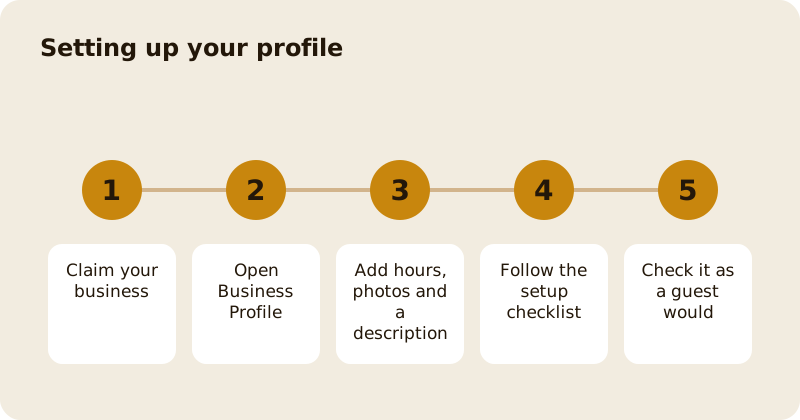
After you claim your business, sign in to the dashboard and look for Business Profile in the sidebar. The sidebar shows the core pages first (Overview, Business Profile and Menu Builder), with other tools collected under More tools until you switch them on. The Overview page shows how your business is doing and what needs attention.
If you cannot see Business Profile, your role may not have the permission to edit settings. See who can do what in the dashboard.
What should you fill in?
The basics. The name, address, phone number and cuisine. Make the name the one on your door. Guests search for it.
Opening hours. Set each day, with more than one period if you close in the afternoon. A day marked closed keeps its old periods but is not shown as open. Hours are used across the app, the website and, if you take bookings or orders, to decide what times a guest can choose. Keep them true, especially on bank holidays.
A description. Write two or three sentences in your own voice: what you cook, who comes, what you are known for. Avoid the words that every place uses.
Photos. A clear cover photo and a handful of the best dishes. Photos from guests appear too, but yours set the tone.
What does the setup checklist do?
The Get your business ready card on the Overview has four steps, each with a time: photo and hours (2 minutes), menu from a photo (3 minutes), what do you want to do (1 minute, which switches on the tools you pick) and get paid (5 to 10 minutes, with Stripe). Do them in any order. Each step ticks itself when the information is saved, so it is never out of date, and the button on each row takes you straight to the right screen.
Every tool you switch on later has its own short checklist at the top of its page. In Account, under Enable features, each tool has a Before you start list, so you know what to have ready.
A payout account is needed before customers can pay you. If you want to take orders, deposits, vouchers or memberships, set up payouts in Account and billing; see account, billing and payouts.
What can guests do from your page?
If you have switched them on: Book a table, Order ahead, Order delivery, Directions and Call. The page also has an Overview, What's on, Posts, Menu and Ratings. A place that has not been claimed shows a note that it has not been claimed yet, and offers guests a Follow instead. Claiming is free.
How do you keep it fresh?
Update hours before every holiday, add a photo when the menu changes, and post about events. Check your page on a phone once a month as a stranger would. If something is wrong, fix it now: guests act on what they see.
Which guides help next?
Build your menu with menus and AI menu scanning, then declare allergens. To get found, read get discovered on Mosey.
Questions
Common questions
Who can edit the business profile?
Owners and managers by default. Staff accounts do not see Business Profile unless you grant them the settings permission on the Team page.
What does the setup checklist show?
Four steps on the Overview: photo and hours, a menu from a photo, what you want to do, and getting paid. Each ticks itself once the information is saved, and each button goes to the right screen.
Do I need a payout account to appear on Mosey?
No. You need one to take payments, such as orders, deposits, vouchers and memberships. Connect Stripe in Account and billing when you are ready.
How do I change my opening hours for a holiday?
Open Business Profile and edit the hours for the day or days. Guests see the change straight away, and booking and ordering times follow your hours.
Can I claim my place for free?
Yes. Claiming a listing is free, and every tool is optional. You choose what to switch on, and you can leave the rest off until you need it.
More like this
Read next
Dashboard: Account and billing, Stripe payouts and your invoices
Account and billing is where you connect Stripe, see what Mosey has charged and why, and download invoices. Your takings go to your own Stripe account, not through Mosey.
Dashboard: Analytics and Mosey picks, what the numbers mean
Analytics shows how people find your business and what they do next. Mosey picks shows where you stand on ratings. Gold is earned from ratings alone and nobody can pay for it.
Dashboard: build your menu, scan it in and declare allergens
Menu Builder is the base for everything you sell. Scan your paper menu, tidy the dishes, choose where each is sold and declare allergens once so every ticket and label carries them.
Dashboard: Catering, requests, quotes, deposits and the calendar
Catering has its own group in the sidebar. A request arrives, you build a quote, the customer accepts, and a deposit holds the date. Here is each screen in order.
Get started
Claim your business free
Free to list, no set-up fee, and Order Ahead is 1.5% commission when you start taking orders.