
How to
How to set a cancellation alert for a full restaurant
Mosey · 23 October 2026 · 3 min read

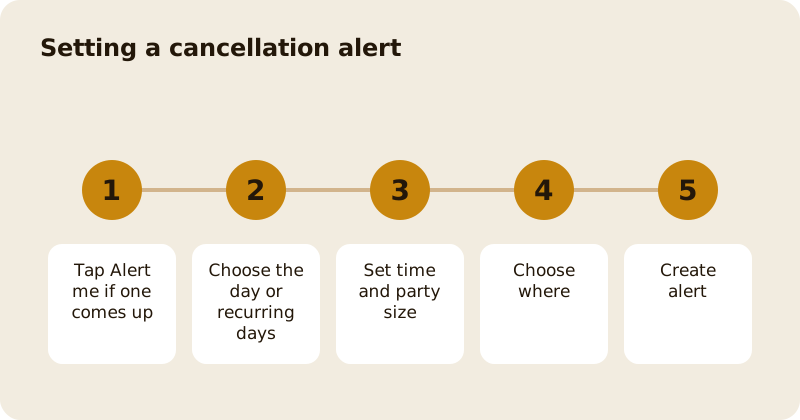
A cancellation alert tells you the moment a cancelled table matches what you asked for. Tap Alert me if one comes up on a place or in the Reserve view, choose the day or recurring days, the time range and party size, and where to watch: one place, places near you, or the places on one of your lists. Then tap Create alert and Mosey notifies you when a cancellation fits.
Where do you set one up?
On the Reserve view, when there are no free tables, the app offers Alert me if one comes up. You can also reach your alerts from the You menu, under Cancellation alerts, and create a new one there. The screen is titled Set up a cancellation alert, with the line that we will let you know when a cancellation matches these.
What do you choose?
When. Pick A specific day, or Recurring days, with an end date if you like. A specific day is for a one-off dinner; recurring days suit "any Friday this month".
Time and party size. Set a start time and an end time, and the number of people. The alert only fires for a table that fits both.
Where. There are three choices: This place, Near me, or From a list. For This place, you are told the moment this place has a cancellation that fits your filters. For Near me, you are told when any place within the distance shown has one. For From a list, you are told when any place on your list has one; pick a list and, if you do not have one yet, make a list first.
When you have chosen, tap Create alert. The app confirms that the alert was created.
What happens when one matches?
You get a notification. Act quickly: a cancelled table goes to the first person who claims it. Open the booking, confirm the details and pay a deposit if the place asks for one. If you need to book through the usual route instead, see booking a table.
How does the cancellation marketplace fit in?
When a guest or a place cannot use a table, they can offer it as a last-minute table. If you claim one, you pay the place's deposit yourself, and the person who offered it is refunded in full. That is why last-minute tables appear in the Reserve view under Cancellations and why an alert can catch them. If nobody claims a table, the normal cancellation policy applies to the person who offered it.
Can you change or remove an alert?
Yes. Open Cancellation alerts in the You menu and edit or delete an alert you no longer need. A long list of alerts for the same night can feel noisy, so keep the ones you really want.
What if you never get a match?
Widen the filters: allow a wider time range or a smaller party size, choose Near me, or add more places to a list. Some busy places rarely have cancellations, so also try a waitlist. Late afternoon on the day is when cancellations are most common.
Related reading: never missing a table cancellation, getting a last-minute table tonight and the reservations feature page.
Questions
Common questions
How do I set a cancellation alert?
Tap Alert me if one comes up in the Reserve view, or open Cancellation alerts in the You menu. Choose the day, the time and party size and where, then tap Create alert.
Can I watch more than one place?
Yes. Choose Near me to watch any place within a distance, or From a list to watch every place on one of your lists.
Will I be charged for setting an alert?
No. An alert is a notification. If you claim a table, the place may ask for a deposit, shown before you confirm.
What should I do when an alert fires?
Open it straight away. A cancelled table goes to the first person who claims it, so confirm the details and pay any deposit the place asks for.
Can I make an alert for several days?
Yes. Choose Recurring days instead of A specific day, and set an end date if you want it to stop.
More like this
Read next
How restaurant deposits and cancellation policies work in Ireland
Why places ask for a deposit, when you get it back, what a card hold means, and what to do when plans change. Restaurant deposits from the diner's side of the table.
Bank holiday weekend eating out: how to avoid disappointment
Bank holiday weekends are busy and hours change. Here is how to book, check opening times and find a table when you are caught out.
Coeliac and gluten free eating out: what to ask
Eating out gluten free depends on the kitchen's answers. Here are the questions that matter and how to read what you are told.
Easter weekend eating out: planning tips
Easter weekend means changed hours and busy rooms. Here is how to check, book and keep a backup for a family meal.