
How to
How to make and share a list of places on Mosey
Mosey · 23 October 2026 · 3 min read

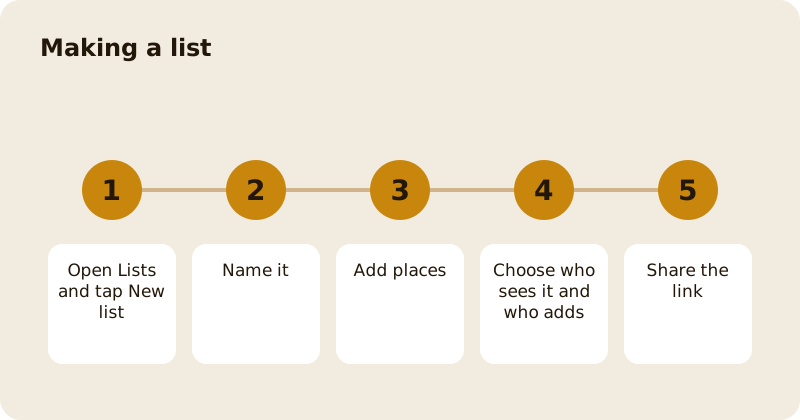
To make a list on Mosey, open Lists, tap New list, give it a name, add places and choose who can see it and who can add to it. A public list can be found, saved and followed by anyone; a private list is only for you and the friends you invite. You can invite friends to add places and notes, share an invite link, and duplicate or delete a list at any time.
How do you create one?
Open the Lists tab. It explains the idea: make lists of your favourite places, build them with friends and share them with everyone. Tap the button to create a new list. It takes three steps, shown as "Step 1 of 3" and so on:
- Name it. Give the list a name. You can add a description saying what it is for, and pick up to five moods that help people find it, such as a special evening.
- Add places. Pick a place to start; you can skip this and add them later. Each place you add is the first thing on the list, and the cover is made from the places' photos, which you can change later in Edit list.
- Who sees it. Choose Public, where anyone can find, save and follow it, or Private, where only people on the list can see it. Then choose Just me, where only you add places and notes, or With friends, where friends you invite can add too.
The screen summarises the combination in a sentence: for example, anyone can find and follow it and only you can change it, or only you and the friends you invite can see it and add to it.
How do you invite friends?
In the Who sees it step, search by name or username and add the friends you want. You can also Share an invite link too; the link is made when the list is created, ready to send. If an invite fails, the app tells you the names and says you can invite them again from the list.
What are the lists made for you?
Top Rated is your highest-rated places. It is permanent and always there. My Favourites holds your saved favourites. It is also permanent and always available. Neither can be deleted.
How do you edit, copy or delete a list?
Open the list and use Edit list to change the name, places, order and sharing. You can duplicate a list to make a copy, for example to start a new version of a trip. To delete a list, confirm that you want to; the app warns that it cannot be undone. If you are invited to collaborate on someone else's list, you see an invitation to accept.
What can you put on a list?
Places, with notes. A list can also include dishes, events and offers that belong to the places on it, which show in groups on the list page.
How do other people find your list?
A public list can appear in the trending and new public lists on the Lists page, and in search. The most saved and liked lists this month are featured. Moods help it get found. Make the name and description honest and specific: "Best cheap lunches near Pearse Street" will travel further than "My list".
What about reporting a list?
If a list breaks the community rules, report it from the list page. Like any content on Mosey, a report goes to moderators.
Lists also feed food trails, which turn a list into a route. Related reading: building your own Dublin food guide with Mosey lists, finding a place by the dish and the lists feature page.
Questions
Common questions
How do I make a list on Mosey?
Open Lists, tap New list, name it, add places and choose who can see it and who can add to it. You can invite friends and share a link.
What is the difference between a public and a private list?
Anyone can find, save and follow a public list. A private list can only be seen by you and the friends you invite.
Can friends add places to my list?
Yes, if you choose With friends. The friends you invite can add places and notes. With Just me, only you can change the list.
Can I delete Top Rated or My Favourites?
No. They are permanent lists made for you. Top Rated holds your highest-rated places and My Favourites holds your saved favourites.
How do I share a list?
Choose Share an invite link in the Who sees it step, and the link is made when the list is created. You can also share a list from its page.
More like this
Read next
How restaurant deposits and cancellation policies work in Ireland
Why places ask for a deposit, when you get it back, what a card hold means, and what to do when plans change. Restaurant deposits from the diner's side of the table.
Bank holiday weekend eating out: how to avoid disappointment
Bank holiday weekends are busy and hours change. Here is how to book, check opening times and find a table when you are caught out.
Coeliac and gluten free eating out: what to ask
Eating out gluten free depends on the kitchen's answers. Here are the questions that matter and how to read what you are told.
Easter weekend eating out: planning tips
Easter weekend means changed hours and busy rooms. Here is how to check, book and keep a backup for a family meal.